Maintenance Tab
The Maintenance Mode tab in the Beaver Builder settings lets you control when your site displays a temporary maintenance page to visitors.
Usage
The Maintenance Mode page lets you put the front end of your site behind a single layout while you work on it. Visitors see the layout you choose, users with a bypass role see the normal site along with an admin bar indicator.
Use this page to coordinate a launch, run a planned outage, or hide work-in-progress pages from visitors. Maintenance mode can be turned on immediately or scheduled for a specific window, and it can return a 503 status to search engines so existing rankings are preserved.
Access Maintenance Settings
The settings live on their own tab inside Beaver Builder's admin area.
- Go to your site's WordPress Admin Dashboard.
- Open Beaver Builder Settings by Navigating to Settings > Beaver Builder.
- Click the Maintenance tab.
Status indicators
The settings page and the WordPress admin bar both display the current state of maintenance mode.
At the top of the Enable Maintenance Mode card, a badge shows one of three states:
- Active, maintenance mode is on and visitors are seeing the maintenance layout.
- Scheduled, maintenance mode is enabled with a schedule, and the start time has not yet been reached.
- Inactive, maintenance mode is off, or the scheduled window has ended.
When maintenance mode is Active or Scheduled, an indicator also appears in the WordPress admin bar for users with a bypass role. The admin bar node expands to show a link to edit the selected layout and a shortcut back to the Maintenance Mode settings.
Settings
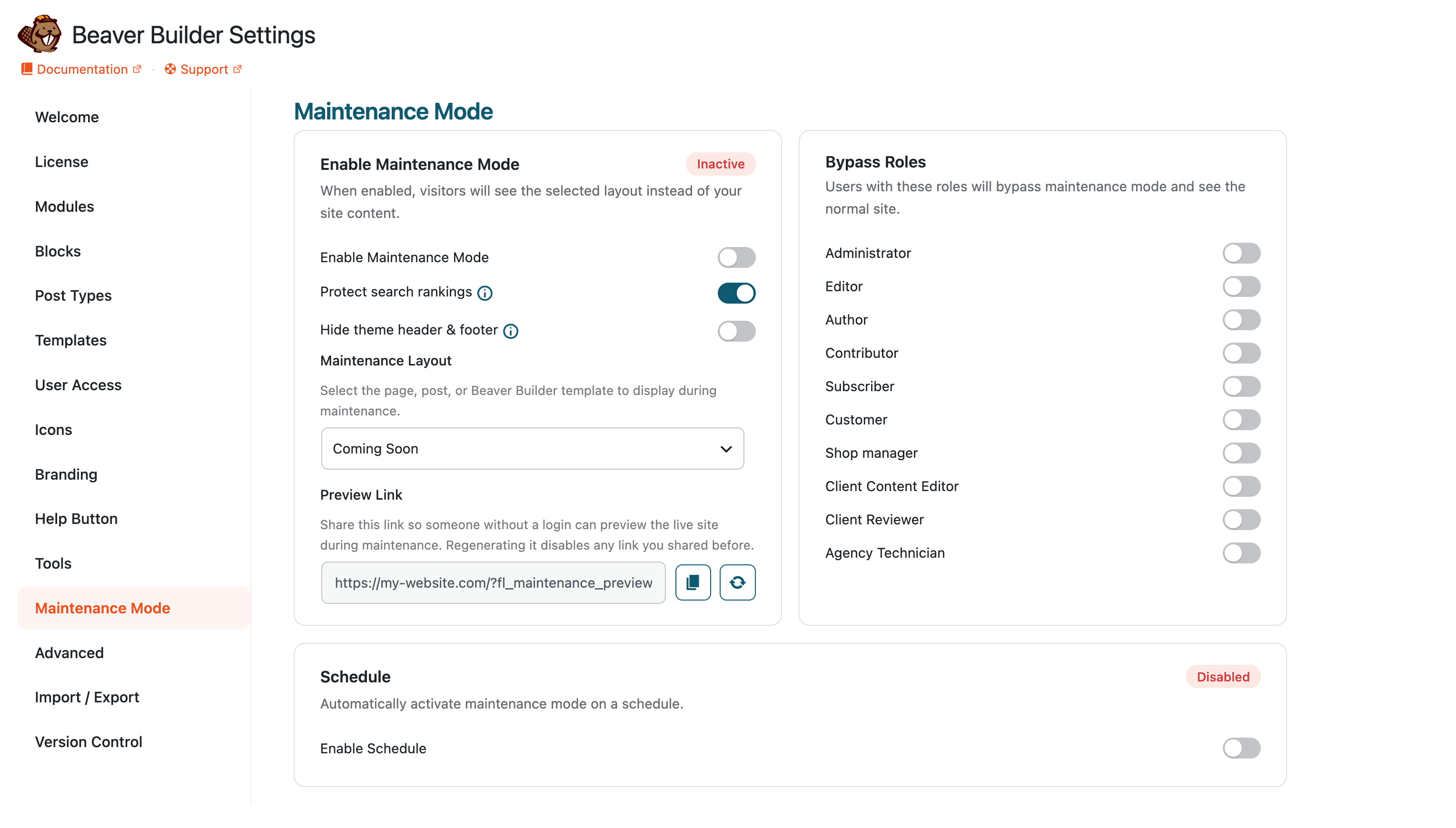
The page is divided into three cards: the main toggle and layout, bypass roles, and the optional schedule.
Enable Maintenance Mode
The first card controls whether maintenance mode runs and which layout visitors see.
Enable Maintenance Mode
- Default: Disabled
- Turns maintenance mode on. When enabled, visitors without a bypass role are served the selected layout instead of your site content.
- If a schedule is also enabled, this toggle still has to be on for maintenance mode to run during the scheduled window.
Protect search rankings
- Default: Enabled
- Sends a
503 Service Unavailablestatus and aRetry-Afterheader along with the maintenance page. This tells Google and other search engines that the site will be back soon so they keep your existing rankings instead of replacing your pages with the maintenance page in search results. - When a schedule is configured, the
Retry-Aftervalue is set to the number of seconds until the scheduled end time. Without a schedule, it defaults to one hour. - Leave this on unless you have a specific reason to return a normal
200 OKresponse during maintenance.
Maintenance Layout
- Default: None
- Selects the page, post, or Beaver Builder template that is shown to visitors during maintenance. Published items from each post type are grouped in the dropdown under Pages, Posts, and Templates.
- If no layout is selected, visitors see a plain WordPress error message: "This site is currently undergoing maintenance. Please check back soon."
- The selected layout is rendered through your active theme's
page.phporindex.phptemplate, so site-wide header, footer, and styling are preserved.
Bypass Roles
The second card controls which logged-in users can see the normal site while maintenance mode is on.
- Bypass Roles
- Default: Administrator
- Lists every WordPress user role on the site, each with a toggle. Users with at least one selected role bypass maintenance mode and see the normal site, along with the admin bar indicator.
- Administrators always bypass maintenance mode, regardless of the toggles, so you cannot lock yourself out by saving an empty selection.
- Logged-out visitors never bypass maintenance mode.
Schedule
The third card runs maintenance mode automatically inside a defined time window.
Enable Schedule
- Default: Disabled
- Turns on scheduled maintenance. When enabled, maintenance mode is only active between the Start and End times, even if Enable Maintenance Mode is on outside that window.
- The card header badge switches to Enabled or Disabled to reflect this toggle.
Start
- The date and time when scheduled maintenance begins. Uses a
datetime-localinput. - Before this time, the status badge shows Scheduled and visitors continue to see the normal site.
- The date and time when scheduled maintenance begins. Uses a
End
- The date and time when scheduled maintenance ends. Uses a
datetime-localinput. - After this time, maintenance mode automatically stops serving the maintenance layout. The
Retry-Afterheader sent to search engines counts down to this time.
- The date and time when scheduled maintenance ends. Uses a
Schedule times use your site's timezone, set under Settings > General in WordPress. The current timezone is displayed below the End field.
How maintenance mode is served
When maintenance mode is active and the visitor does not have a bypass role, Beaver Builder intercepts the front-end request before the theme renders. The selected layout post is loaded into the main query, then the active theme's page.php (or index.php as a fallback) renders the layout in place.
If Protect search rankings is on, the response is sent with HTTP status 503 Service Unavailable and a Retry-After header. Search engines treat this as a temporary outage and preserve the site's existing index entries.
The WordPress admin is never affected by maintenance mode. Logged-in users can always access /wp-admin/ regardless of the maintenance settings.